ClickUp Review 2026: Features, Pricing, and User Experience
Hey, I’m Likhon Hussain. I’m a cloud engineer, so my work involves a lot of moving pieces – managing servers, dealing with deployments, fixing stuff when it breaks (usually at odd hours), and just trying to keep everything running smoothly.
Before I found ClickUp, my work life was chaos. I had tasks scattered in Trello, notes everywhere in Google Docs, tracked time in yet another app, and honestly, half my important stuff was on sticky notes stuck to my monitor. It was a disaster waiting to happen.
A buddy of mine kept bugging me to try ClickUp. I brushed him off for weeks because I thought it was just another fancy tool that would waste my time. But things got so messy that I finally caved and signed up. That was six months ago. I’m still using it today, and I’ve got thoughts.
My Quick Take
After half a year of using this thing daily, I’d say it’s a solid 4 out of 5. The free version isn’t some bait-and-switch situation – you can actually get work done with it. When I upgraded to the paid plan at $7 a month, things got even better.
What’s good about it? You can look at your work however makes sense to you. It handles the boring repetitive stuff automatically. It doesn’t cost an arm and a leg. You can customize pretty much everything. But yeah, there are downsides. Getting comfortable with it takes time. Sometimes it feels like too much. The phone app isn’t great. It gets a bit sluggish occasionally.
If your work involves complicated projects and you’re cool with spending some time figuring out a new tool, go for it. But if you just want something brain-dead simple that you can use right this second, this probably isn’t it.
So What Is This Thing?
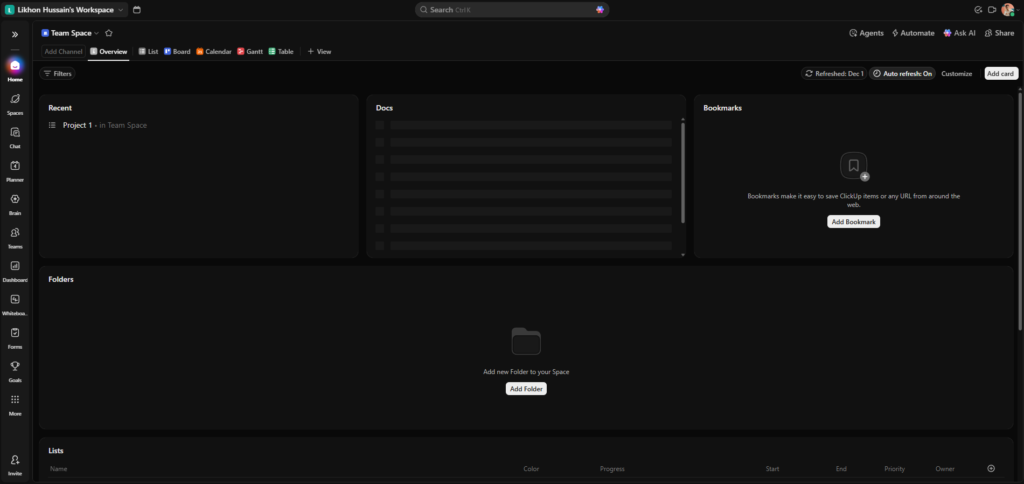
ClickUp wants to be the one app that replaces everything else you use for work. Tasks, documents, tracking goals, logging time, chatting with your team – they want it all to happen in their platform. The company’s been around since 2017 and has grown pretty fast.
Their whole thing is about stopping the madness of having fifteen browser tabs open and jumping between different tools all day. After using it for a while, I can say they mostly pulled it off, though getting there took some work.
What It’ll Cost You
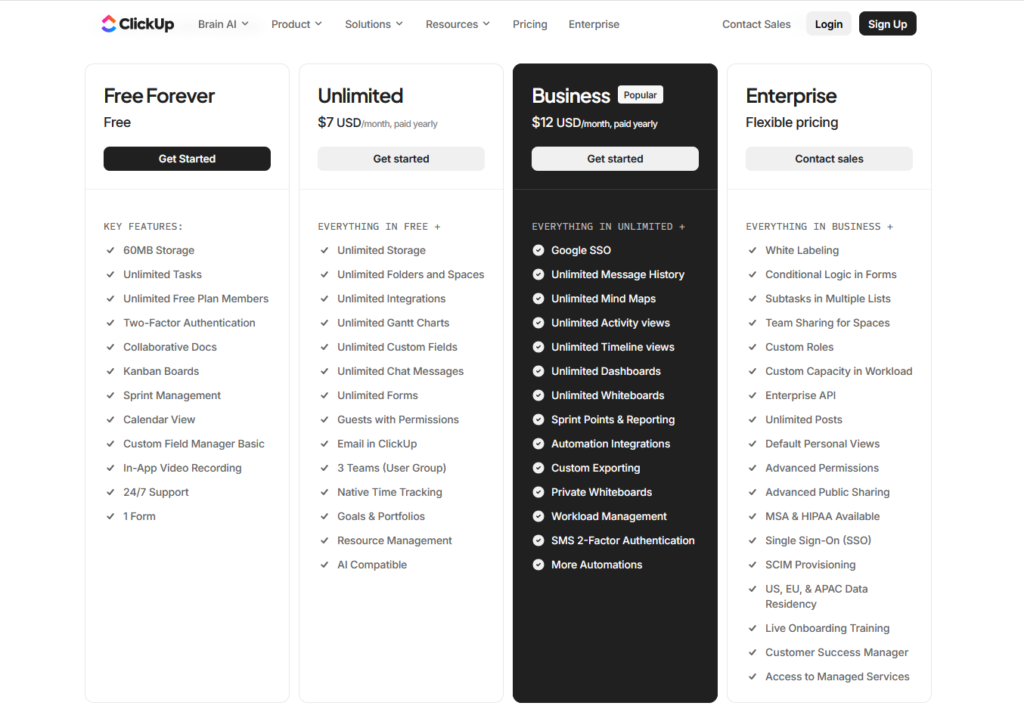
ClickUp has a free version that I used for about two months. This isn’t one of those sneaky “free trials” that locks you out after a week. It’s actually free. You get unlimited tasks, can invite your whole team, and access basic stuff like lists and boards.
The catch is you only get 100MB of storage. That filled up fast for me because I was attaching diagrams and docs constantly. But if you’ve got a tiny team or you’re just testing it out, the free version does the job.
I’m on the Unlimited plan now at $7 per person each month. That gets rid of the storage limit and opens up everything – all the views, better reports, time tracking, connections to other apps. Seven bucks. I’ve wasted more money on a mediocre lunch.
There’s also a Business plan at $12 monthly with fancier automation and team management stuff, but I haven’t needed it yet. Then there’s Enterprise pricing, which you have to ask them about, and that’s for huge companies that need special security and support.
They’ve got this AI thing called ClickUp Brain for an extra $7 monthly. I tried it for about a month. It searches through your projects, helps you write stuff, answers questions. The search part was decent – you could ask it to find something and it would dig through everything. But I didn’t think it was worth the extra money. The regular stuff works fine without it.
What Actually Matters Day-to-Day
Making a task is easy. Hit the button, type what needs doing, done. But then you can pile on details if you want – who’s handling it, when it’s due, how urgent it is, what stage it’s in, tags, smaller tasks inside the main task, time estimates.
For my cloud work, I added fields for stuff like which cloud service we’re using, whether it’s dev or production, how risky the change is, rough cost. Sounds like a lot, right? At first, yeah. But after a week or two, you stop thinking about it. The info’s just there when you need it. When you’re dealing with infrastructure across multiple platforms, those details actually save your butt.
Here’s what changed everything for me – you can look at the same tasks in completely different ways. I like lists. Show me a clean list and let me work down it. That’s how my brain works. My coworker likes dragging cards around on a board.
Our project manager needs to see everything on a calendar. We’re all looking at the same tasks, just in whatever way clicks for each person. Nobody’s forced to work in a way that feels wrong. I dodged the Gantt chart for weeks because it looked corporate and boring. But then I had to manage this huge migration project with tasks depending on other tasks everywhere.
Finally gave it a shot. Turned out being able to see how everything connects and what gets delayed if something goes wrong is pretty damn useful. There’s also a Timeline view that’s cleaner, which I use for shorter projects. And a Table view that’s basically a spreadsheet – I use that for tracking servers and costs.
The automation stuff is my favorite, mainly because I’m lazy and hate doing the same thing over and over. You can set up rules so things just happen. When someone marks a task ready for testing, it gets assigned to QA and sends a Slack message automatically.
I used to do that manually about twenty times a day. When something’s urgent, it jumps to the top and turns red. When a deadline’s coming up, it reminds people. When we finish deploying, it waits a week then archives everything.
Setting this up took maybe an hour. Now it just runs. I forget it’s even happening until I realize I’m not doing that tedious task anymore. The $7 plan gives you 250 automations each month. Sounds like plenty, right? We ran out twice. The pricier plan has unlimited, which I’m thinking about.
Time tracking is built right in. Click to start a timer, click to stop. That’s it. I track time for two reasons. One, I do consulting on the side and need to bill for it. Two, I wanted to see where my time actually goes. Turns out I spend way more time in meetings than I thought. You can also add time manually when you forget to start the timer, which happens to me all the time.
Connecting to other stuff matters more than I expected. It links up with Slack for notifications, Google Drive for files, GitHub so code changes show up on tasks, Zoom for meetings, Google Calendar for deadlines. The GitHub one is huge for dev work. Someone pushes code and it appears right on the task. No switching apps to see what changed.
There’s a docs feature built in, kind of like Google Docs but inside ClickUp. I use it for deployment guides, meeting notes, system docs, incident checklists. You can even stick live tasks inside documents. Instead of writing “make a backup,” I drop the actual task in there. When someone finishes it, the doc updates by itself. Could I use Google Docs? Sure. But having it all in one spot means fewer tabs to juggle.
Dashboards show you data about your work through charts and numbers. Mine shows tasks by status, who’s working on what, time logged this week, what’s due soon. I check it every morning to see where things stand. You can customize it however you want. Free version gives you one. Paid plans give you as many as you want.
Learning This Thing Takes Time
I’m gonna be straight with you – ClickUp is complicated when you start. First day, I felt lost. Buttons everywhere, options everywhere, settings everywhere. Didn’t know what half of it did. Took me about a week of using it every day before I stopped feeling confused. Two weeks before I felt like I knew what I was doing.
A month before I felt confident. They’ve got templates that help – I grabbed their software development one and tweaked it to match how we work. That kept me from staring at a blank screen wondering where to start.
If you want something you can figure out in five minutes, this isn’t it. This takes effort. But the payoff comes later. Simple tools fall apart when work gets complicated. ClickUp was built for complicated work. Once you push through those first couple weeks, it starts making sense.
My suggestion? Grab a template, use it for a week without changing anything, then slowly tweak it as you figure out what you need. Don’t try building some perfect system on day one. You’ll get frustrated and quit.
Computer vs ClickUp Phone
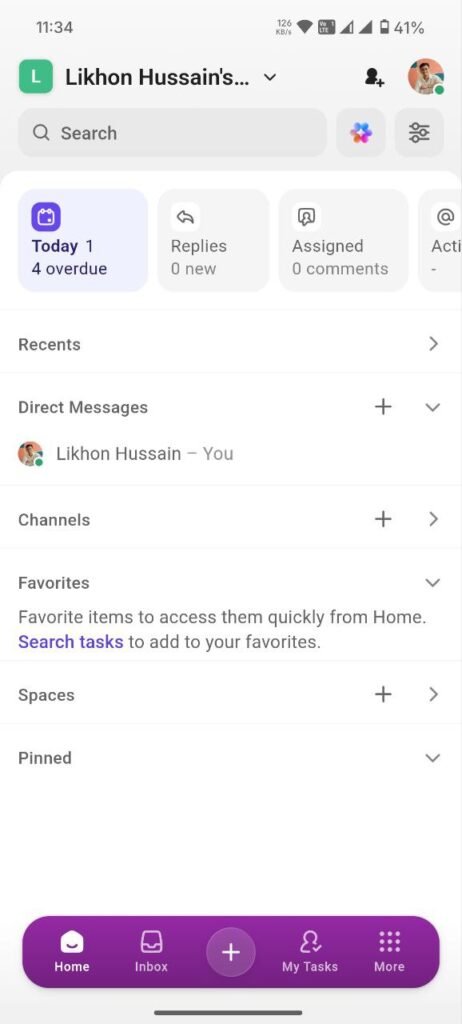
On my Mac, ClickUp runs great. Fast, smooth, no problems. The web version works just as well. I bounce between them without noticing a difference. The phone app? Different story. I can check tasks, update stuff, add quick notes. But trying to do real work on my phone is annoying.
Everything feels squeezed. Features that are simple on the computer get clunky on mobile. The app’s crashed on me a few times too. I only use mobile for quick checks when I’m away from my desk. Anything serious waits till I’m on my computer.
What I Like
The free version actually works. Not like those fake free plans that are basically useless. I ran my team on it for two months without feeling limited. You can get real work done. That gave me time to test it properly before spending money.
You can customize everything. Colors, statuses, fields, views, layouts, notifications, automations. If you can picture a way to organize work, you can probably build it. This is great once you know what you want. Overwhelming at first. I wasted too much time in week one playing with colors instead of actually working. But having everything fit exactly how you work is powerful.
The different views keep mattering. Some people think visually. Some think in lists. Some need calendars. ClickUp handles all of them. Nobody on my team has to work in a way that doesn’t fit how their brain works. Simple idea but huge impact.
Automation saves hours. Set up rules once, they run forever. Tasks get assigned, notifications get sent, stuff gets organized, and I don’t touch it. Every automation is one less boring task I’ll ever do again. Over months, that’s a lot of saved time.
The price is fair. Seven bucks monthly for this much stuff is cheap. I’ve seen worse tools charge twenty per person. For small teams watching money, this matters.
Having everything in one place reduces mental clutter. I closed so many tabs. Cancelled some app subscriptions. Stopped jumping between tools constantly. Tasks, docs, time tracking, team chat – all in ClickUp. Less switching means more focus.
They keep adding new stuff. Sometimes too much new stuff – I’ll log in and find features I didn’t ask for. But better than a dead product. When I report bugs, they usually get fixed fast. The platform feels alive.
What Annoys Me
Learning it breaks some people. I’ve watched teammates struggle. Not everyone wants to spend a week learning new software when they’re already busy. Some gave up and went back to simpler stuff. If your team hates change or complicated tools, forcing ClickUp on them causes problems.
Sometimes it’s overkill. I just want to add a task. ClickUp wants me to think about priority, tags, who’s doing it, when it’s due, what status. Sometimes I want to write “buy milk” and be done. The power becomes a burden for simple stuff.
Mobile needs work. I said it already but it’s worth repeating. The app is okay for basic things but frustrating for more. I’ve learned to just avoid real work on my phone.
Notifications overwhelm you at first. ClickUp tells you about everything by default – tasks created, updated, commented on, mentioned, due, everything. I spent time turning most off. You’ll want to do this too unless you like being pinged constantly.
Support is hit or miss. When I needed help, I mostly used their docs and forums. Both are decent. But sometimes you want to talk to someone. I’ve emailed support three times. Once got a helpful answer in eight hours. Once took two days. Once got a generic response with a link. For urgent stuff, support might not be fast enough.
They keep adding features I don’t need. Every login, there’s something new. Some are useful. Others just clutter things up. The tool’s already complicated. More features make it more complicated. I’d rather they perfect what exists than keep piling on.
Has bugs sometimes. Not often, but they happen. Things don’t load right, automations don’t fire. Usually fixed in the next update, but when you’re working and something breaks, it’s irritating.
Who This Works For
People managing technical projects. The complexity helps when work is complicated. If you’re coordinating infrastructure across multiple cloud platforms, managing dependencies, tracking costs, working with scattered teams, ClickUp handles that. Simple tools break under that kind of pressure.
Remote teams. When everyone’s in different places, you need one place where everything lives. ClickUp becomes your digital office. Everything happens there. Updates are instant. Communication flows. Distance stops mattering.
Agencies and consultants with multiple clients. You can separate client work, track time for billing, manage deadlines across projects, keep everything from blending together. Time tracking exports to invoices. Custom fields tag things by client. Dashboards show the full picture.
Growing businesses in that awkward middle stage. You’ve outgrown simple stuff like Trello. You’re not big enough for enterprise stuff like Jira. ClickUp sits right in that gap. Sophisticated enough to handle growth but not so complicated you need someone dedicated to managing it.
People who like tinkering with tools. If you enjoy customizing your workspace, setting up shortcuts, optimizing workflows, you’ll love ClickUp. There’s always something to tweak.
Who Should Skip This
People wanting simple will hate it. Just need a basic to-do list? Use Todoist or something. ClickUp for simple tasks is like using a flamethrower to light a candle. Teams that resist change will struggle. Everyone needs to commit to learning it. If people won’t invest the time, they’ll stay frustrated and demand to go back to whatever you used before.
Really small, simple projects don’t need this. Organizing a bake sale? Tracking three weekend tasks? This is massive overkill. Use paper. Use a simple app. Don’t bring enterprise project management to hobby stuff.
People needing hand-holding from support should look elsewhere. Support exists but isn’t amazing. You’ll mostly help yourself through docs and forums. If you need someone walking you through everything, you’ll be let down.
Compared to Other Stuff
I used Asana before this. Asana looks cleaner and is easier to learn. You can get productive faster. But ClickUp has more features and costs less. Customization goes way deeper. More views, more automation, better free plan. I prefer ClickUp because I need the power. But if I was starting a small team that values simplicity, I might pick Asana.
Monday looks gorgeous. Colorful, friendly, very visual. But ClickUp is more powerful and cheaper. Monday is easier but ClickUp does more. If your team cares about looks and wants something pretty for client presentations, Monday wins. Care more about features and price? ClickUp wins.
Trello is just boards. Cards move between columns. That’s basically it. Dead simple, which is great for simple needs. ClickUp is way more. Comparing them is like comparing a bike to a car. Both get you places but for different purposes.
Notion is interesting because both try to be all-in-one workspaces. Notion is better for docs and wikis. Database features are more flexible. Great for personal use and knowledge management. ClickUp is better for project management and task tracking. Automation is stronger. Time tracking works better. I use both. Notion for company knowledge base. ClickUp for projects.
How I Use It
My workspace has three spaces. Cloud engineering projects, consulting work, personal stuff. Separating them keeps things organized and prevents mixing.
Inside cloud engineering, I made folders for AWS stuff, Azure stuff, maintenance, documentation. Each folder has lists for specific projects. This makes sense for how I work. Everything has a logical spot. Finding things is easy.
I changed the statuses to match our actual work. Instead of “To Do, Doing, Done,” we use Backlog, Planning, Ready, Working, Testing, Review, Deployed, Done. These reflect reality. When I see a status, I know exactly what’s happening.
Most of my day is in List View. I like seeing everything in a clean list by priority. I can scan fast and know what needs attention. Every two weeks for sprint planning, I switch to Board View. Cards make it easier to drag things between sprints and balance work. For big projects with lots of dependencies, Gantt View maps out timelines. For tracking server costs, Table View works because I can sort and filter.
I built templates for stuff I do repeatedly. Deployment checklist has thirty steps. Incident response has all the steps for outages. New project setup creates all initial tasks automatically. Templates save tons of time.
I set up keyboard shortcuts early. Quick task creation, timer start, command menu, sidebar toggle – all muscle memory now. Shortcuts make everything faster.
Starting Without Losing Your Mind
When you sign up, don’t customize everything right away. Pick a template close to your work. Use it as-is for the first week. Just add tasks and work. Get comfortable with basics before changing anything.
First week, focus on List and Board views. Create tasks, update statuses, add comments, attach files. Do fundamental stuff. Invite your team. Notice what feels clunky. Make notes but don’t change things yet.
Weeks two through four, start customizing slowly. Adjust statuses. Add custom fields. Set up a few automations for repetitive tasks. Connect apps you use daily. Tune notifications. Create a template or two. Each change should solve a specific problem you noticed.
After a month, you’ll have something that works. Keep refining. Remove stuff you’re not using. Add things as you need them. The system should grow with your work. Don’t try building perfection on day one.
Biggest mistake is trying to learn everything immediately. ClickUp has hundreds of features. You don’t need most of them. Start with core task management. Add complexity gradually. This prevents overwhelm.
Security Stuff
Working with cloud infrastructure means I care about security. ClickUp uses SSL encryption. They have two-factor authentication, which I turned on right away. Activity logs show who did what. Permission controls restrict access. Data lives on AWS. They’re GDPR compliant, have SOC 2 certification.
For most teams, security is fine. If you handle really sensitive data or have strict compliance like HIPAA, you’ll want Enterprise. That tier has extra security features.
Support Experience
I contacted support three times. First time, asked about automation limits. Got a helpful response same day. Second time, reported a bug. Took two days to hear back. They fixed it in the next update. Third time, asked about migrating from Asana. Got a generic response with a doc link. Figured it out myself.
Support is okay. Not great, not terrible. The docs are good. The forum is active with people helping each other. For most issues, you’ll find answers without contacting support. For urgent problems, don’t expect fast help.
Recent Changes
ClickUp updates constantly. Recent stuff includes better AI features, Outlook integration, performance improvements, new automation triggers, mobile app improvements. Mobile is better than six months ago but still needs work. They update so often that sometimes I log in and find new features I didn’t know were coming. Exciting and overwhelming. I’ve learned to ignore most new features until I need them.
What Others Think
ClickUp gets around 4.7 out of 5 on review sites. Reading reviews shows a pattern. Power users and technical teams love it. They praise customization, features, value. Casual users and non-technical teams feel overwhelmed. They complain about complexity.
On Reddit and Twitter, same split. People who invested time love it. People wanting simplicity hate it. Common theme in positive reviews: “Amazing once you learn it.” Common theme in negative: “Too complicated.”
This matches my experience. ClickUp is powerful but needs investment. Whether that’s worth it depends on your needs and willingness to learn.
If This Isn’t Right
Asana has a cleaner interface and easier learning for $11 monthly. Monday has beautiful visuals and is intuitive for $8 monthly. Notion works better for documentation at $8 monthly. Trello gives simple boards with a good free plan, paid starts at $5 monthly.
Each tool does something well. None tries doing everything like ClickUp. The right tool depends on your situation. Managing complex projects with automation needs and distributed teams? ClickUp makes sense. Just want to track tasks simply? Something else will serve you better.
Six Months Later
After using ClickUp daily for six months, I think it’s worth it for the right person. If you manage complicated work, want to consolidate tools, need customization, and don’t mind learning, ClickUp delivers value. The $7 monthly cost is cheap. The free plan lets you test properly before paying.
But if you want simple, have basic needs, hate complex software, or need great mobile experience, ClickUp will frustrate you. The learning curve is real. The interface can overwhelm. Mobile disappoints. These aren’t small problems.
For me managing infrastructure projects, ClickUp has been valuable. Setup took time. Learning took effort. But now it saves me hours weekly. I’ve closed other apps, cancelled subscriptions, centralized work in one place. Automation eliminates repetitive tasks. Multiple views accommodate different working styles. Integrations connect everything.
Is it perfect? No. Learning curve is steep. Mobile disappoints. Sometimes feels like overkill. They keep adding stuff I don’t need. Support could be faster. But despite these issues, it works for what I need.
My rating is 4 out of 5. I’d recommend it with clear expectations about the learning required. Try the free version for two solid weeks. Actually use it for real work. If you hate it after two weeks, you’ll hate it forever. Move on. If you see potential, upgrade to the $7 plan and commit to learning properly.
ClickUp rewards patience. If you’re willing to invest time upfront, you’ll likely get that time back through efficiency. If you’re not willing to invest time, you’ll never get past frustration. It’s a tool. Won’t make you organized automatically. But it’s powerful if you learn it properly. After six months, I’m keeping it and not switching. Maybe it’ll work for you too.
Disclaimer: This review is based on my own experience using ClickUp for six months. I paid for it myself, nobody sponsored this, and I’m not getting paid to write it. Your experience might be different from mine since I’m managing cloud engineering projects. Pricing and features can change, so check ClickUp’s official site for current info before you buy anything. This is just my honest opinion, not professional advice.