5 Best Coding Assistants for VSCode: Real Developer’s Guide
So I’ve been putting off writing this article for weeks now. Not because I don’t have opinions about coding assistants trust me, I have plenty but because every time I sit down to write about them, I end up using one to help me write faster. The irony isn’t lost on me.
Two years back, I thought AI code tools were a gimmick. Like, come on, how’s a computer gonna understand what I’m trying to build better than I do? I’d been coding for years without any AI help, and I was doing just fine.
Then my manager assigned me to this legacy PHP project. You know the kind written by someone who definitely knew PHP but apparently hated everyone who’d ever read their code. No comments, functions that were 300 lines long, variable names like $tmp2 and $data_arr_final_v3. I spent three days just trying to understand what one module did.
Out of desperation, I installed GitHub Copilot. Highlighted a chunk of that nightmare code and asked “what the hell is this doing?” Got back a clear explanation in like 10 seconds. It even pointed out a bug the original dev had been comparing strings with == instead of === in JavaScript sections, which was causing weird behavior nobody had figured out.
That moment changed my mind. Not because the AI was magic, but because it saved me from wanting to quit and become a bartender instead.
Since then, I’ve tried pretty much every coding assistant out there. Some because I was genuinely curious. Others because I was procrastinating on actual work and “testing new tools” sounded productive. Here’s what I figured out.
GitHub Copilot – The One That Just Works
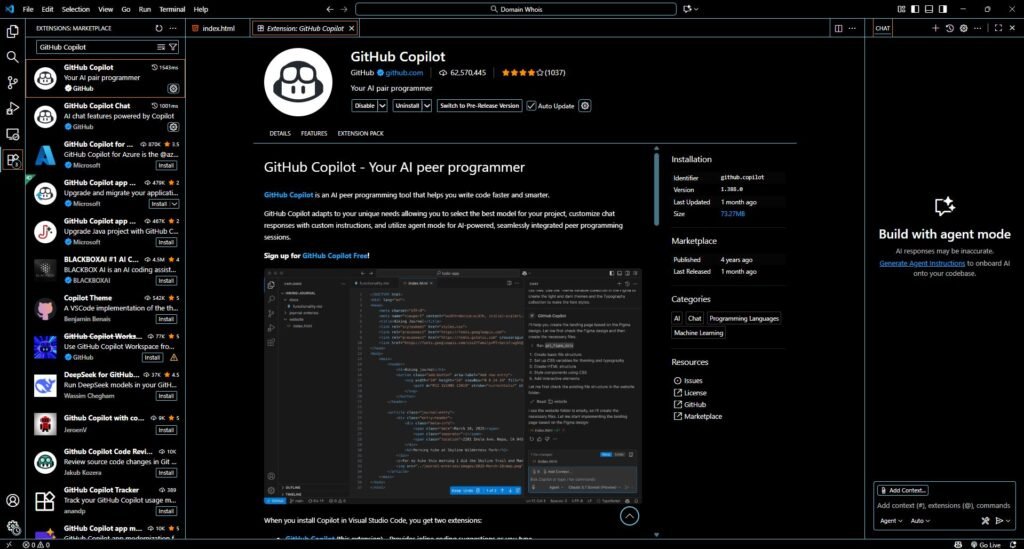
I’m gonna start with Copilot because it’s probably what you’ll end up using anyway. Not the most exciting recommendation, I know, but sometimes the popular choice is popular for good reasons.
I added it to my VSCode about eight months ago. First few days felt super weird. Like when someone’s reading over your shoulder while you type. I actually turned it off after day two because I couldn’t focus.
Then I was building this REST API for a client. Needed to make five different models with basically the same CRUD setup. I turned Copilot back on, typed the first one, and watched it generate the next four. With proper error handling. And logging. And even some validation I’d probably forgotten to add myself.
That’s when I got it. This isn’t about Copilot being smarter than me. It’s about Copilot remembering the boring stuff so I don’t have to.
What It’s Actually Like Using It
The suggestions show up as gray text while you type. You hit Tab to accept, or just keep typing to ignore. Simple as that.
Works best when you’re doing something you’ve done before. Writing another API endpoint? It knows the pattern. Need a function to validate an email? It’s seen a million of those. Trying to remember the syntax for that one lodash method? Copilot’s got you.
Where it screws up is with new stuff. I was trying out a new Rust library last month thing’s only been out for like three months. Copilot kept suggesting methods that straight up didn’t exist. I’d write something, it’d autocomplete confidently, and then the compiler would yell at me. So yeah, you can’t just blindly accept everything. Still gotta know what you’re doing.
The Chat Thing
They added a chat feature a while back. I ignored it for weeks because I thought it was gimmicky. Then I got stuck debugging some React hooks and figured what the hell, let’s ask the robot.
“why is my useEffect running on every render”
It read my component and told me I was missing some dependencies in the dependency array. Which, okay, I should’ve caught that myself. But I’d been staring at the code for 20 minutes and my brain just wasn’t seeing it.
Now I use the chat probably 5-6 times a day. Mostly for:
- “explain what this code does” (when reading other people’s messes)
- “why isn’t this working” (when my own code is being weird)
- “what’s the best way to do X in library Y” (when I’m too lazy to read docs)
It’s not always right. But it’s right enough that it’s worth asking.
Costs Ten Bucks
Yeah, it’s a subscription. $10/month or $100/year.
I wasted more than ten dollars on that sandwich I bought yesterday that turned out to be disappointing. At least Copilot delivers.
If you’re a student or maintain open source projects, it’s free. Which is cool of them.
How to Install It
Go to your VSCode extensions (the squares icon on the left). Search “GitHub Copilot”. Click install. Sign in with GitHub. Done. For the chat, install “GitHub Copilot Chat” too. Then press Ctrl+Shift+I (or Cmd on Mac) to open it. Takes like two minutes total.
Cursor – When You Want to Feel Like a Wizard
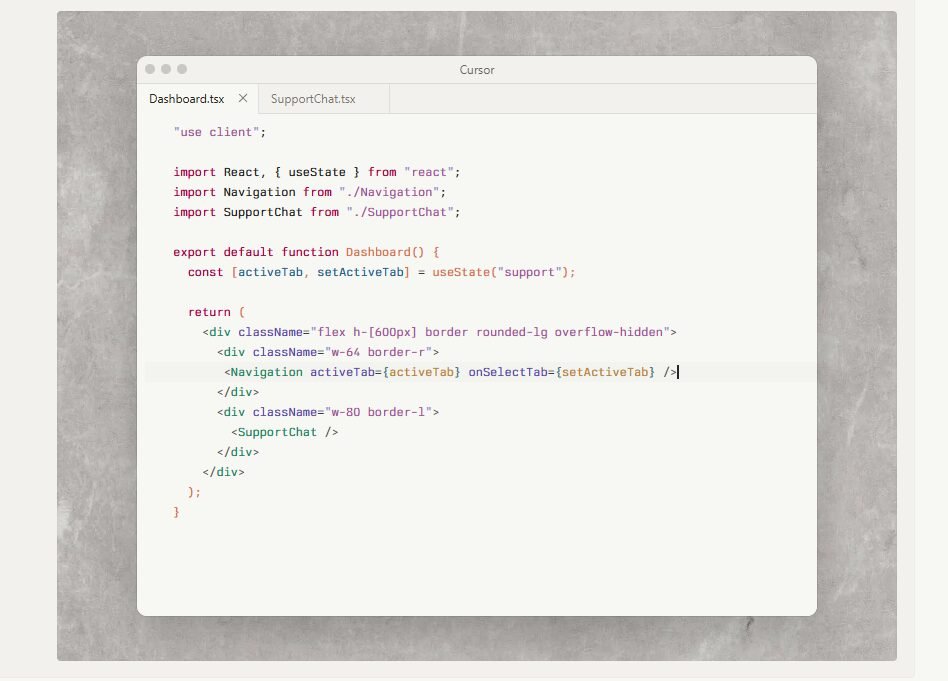
Alright, this one’s different. Cursor isn’t just an extension they basically took VSCode, rebuilt it, and made AI the main character. I resisted trying it for months. Why would I abandon VSCode? I’ve got everything set up perfect. My keybindings, my extensions, my color theme that took me an hour to get just right. Starting over sounded awful.
My coworker kept bugging me about it. “Dude just try it for one day.” So I did. Took all my VSCode settings automatically. Didn’t have to set up anything. And then… okay, the Composer thing is actually insane.
This Composer Thing
You open Composer (Ctrl+I), describe what you want to change, and it edits multiple files for you. Not suggestions actual edits.
Real example: Had this Node.js project where we’d been adding features for months. Error handling was all over the place. Some functions used try-catch, some used callbacks, some just let errors crash the server. It was embarrassing.
Told Composer: “standardize all error handling to use async/await with try-catch blocks and log errors properly”
It went through like 15 files. Changed everything. Added consistent error messages. Even updated the tests.
I still reviewed every change (because I’m not crazy), but everything was correct. Would’ve taken me half a day to do manually. Took 20 minutes with Cursor.
The Inline Edit Shortcut
Press Cmd+K (or Ctrl+K), type what you want changed, boom.
Yesterday: highlighted a function, “make this async”, three seconds later it’s properly async with awaits in all the right places.
Last week: “add input validation”, got proper checks with clear error messages.
This morning: “optimize this database query”, got a version with better indexes and fewer round trips.
It’s like having a really good junior dev who executes exactly what you ask for without asking a million questions.
Claude Integration
Cursor lets you pick which AI to use. The Claude option is noticeably better for complicated stuff. I was debugging this payment flow that touched five different microservices. Pasted relevant code from all of them into Cursor, asked Claude to explain the whole flow and find issues.
Got back this super clear explanation of how money moves through the system, plus it spotted two race conditions. Both were real problems. One would’ve caused duplicate charges under specific timing conditions. That kind of analysis is where the fancy AI actually matters. For normal autocomplete stuff, doesn’t make much difference.
The Annoying Parts
Costs $20/month if you use it a lot. Free tier exists but you’ll run out of requests pretty quick. You’re switching editors. Yeah it imports everything, but you’re still in a different app. A couple of my more obscure VSCode extensions didn’t work perfectly.
Also took me like a week to remember all the new keyboard shortcuts. And I kept opening regular VSCode by habit, then remembering “oh wait, I’m supposed to use Cursor now.”
Setting It Up
- Go to cursor.sh, download it, install.
- First time you open it, it’ll ask to import your VSCode stuff. Let it.
- Sign up for an account (the free tier is enough to try it out).
- Do the quick tutorial so you learn the keyboard shortcuts.
- Give it a few days. Your muscle memory will complain at first.
Tabnine – For When Your Boss Is Paranoid About Security
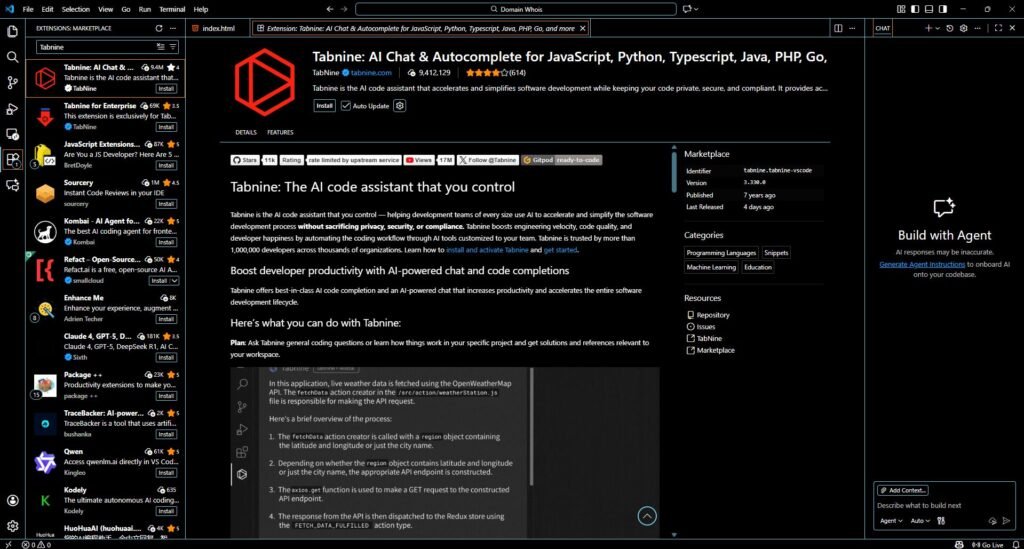
My buddy works at a healthcare company. They build software for medical records and stuff. Every piece of code gets reviewed by like three different security teams. He can’t use Copilot. Can’t use Cursor. Can’t use anything that sends code to someone else’s servers. HIPAA rules, apparently.
So he uses Tabnine, which runs on his laptop. Code never leaves his machine. I installed it to see what he’s dealing with. Honestly? It’s fine. Not amazing, but fine. The autocomplete works. It suggests reasonable stuff. Definitely better than no AI help.
Just not as smart as the cloud-based options. Makes sense when you think about it the AI model has to be small enough to run locally, which means it can’t be as capable as the huge models Copilot and Cursor use.
When It’s Actually Good
For standard coding stuff CRUD operations, common patterns, basic logic Tabnine handles it fine. I was building a Django API with it. The view functions, serializers, URL configs all worked out okay. Tabnine knew the Django patterns well enough.
Where it struggled was understanding my whole project. Like, it could autocomplete individual functions fine, but it didn’t really get the bigger picture of what I was building.
The Company Training Thing
Tabnine’s team version (costs money) lets companies train it on their codebase. So it learns your internal libraries and coding patterns. A friend at a startup did this. They have a bunch of custom React components and specific ways they structure state management.
After training Tabnine on their repos, new developers could jump in faster because the AI was suggesting code that matched their style. That’s pretty clever actually. Though it does mean trusting Tabnine with your code for the training part.
Installing It
- VSCode extensions, search Tabnine, install it.
- It’ll ask if you want cloud or local. Pick local if you care about privacy.
- Downloads some AI models (takes a few minutes, needs a few gigs of space).
- Then it just works in the background.
CodeWhisperer – Amazon’s Free Thing That’s Better Than Expected
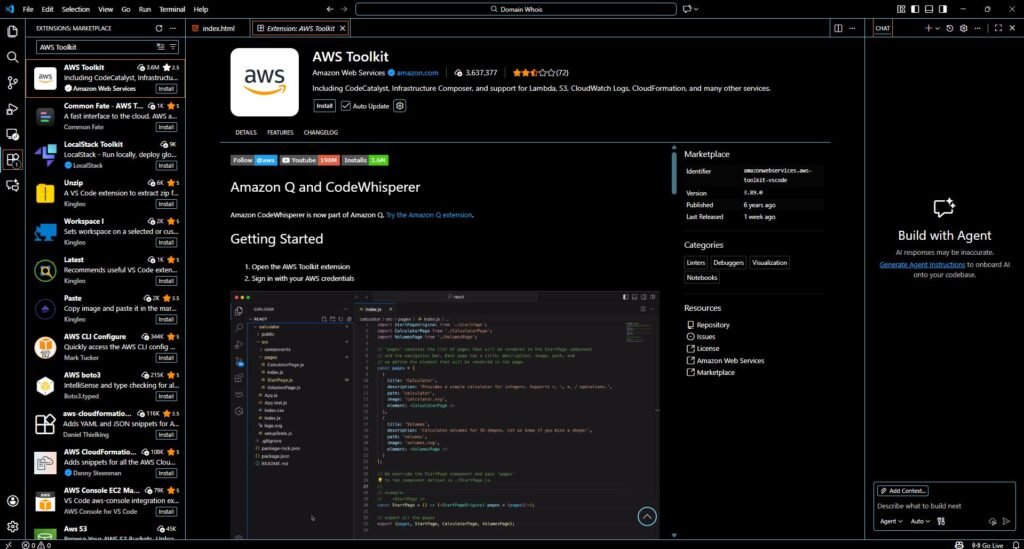
I installed this expecting garbage. Amazon makes great cloud services but their developer tools are usually meh. Turns out CodeWhisperer is actually pretty decent. And completely free. Like, not a trial, just free.
When It’s Actually Better Than Copilot
If you’re doing AWS stuff Lambda functions, DynamoDB calls, S3 operations CodeWhisperer is legitimately better than Copilot.
I was writing a Lambda function last month that needed to query DynamoDB and upload results to S3. CodeWhisperer’s first suggestion was almost exactly what I needed. Proper boto3 code, good error handling, even added exponential backoff for retries.
Copilot would’ve gotten there eventually, but CodeWhisperer nailed it immediately because, duh, it’s made by the same people who made AWS.
For Regular Coding
For non-AWS stuff? It’s okay. Not bad, just not special. If Copilot is like a solid senior dev helping you out, CodeWhisperer is more like a decent mid-level dev. Gets the job done, occasionally suggests something clever, sometimes needs correction.
I wouldn’t choose it over Copilot for general work. But since it’s free and doesn’t conflict with Copilot, I just keep both installed. Let CodeWhisperer handle AWS stuff, use Copilot for everything else.
Security Scanner
CodeWhisperer will scan your code for security problems. Found a few things in some old code I inherited:
- SQL injection vulnerabilities (oops)
- Hardcoded API keys (double oops)
- Some sketchy file path handling
All real issues I should’ve caught. Nice to have a tool point them out automatically.
Installing It
- Install the AWS Toolkit extension (CodeWhisperer comes with it).
- Command palette > “CodeWhisperer” > sign in.
- Make a free AWS Builder ID (different from regular AWS account, don’t ask me why).
- That’s it. Free forever, no credit card needed.
Codeium – How Is This Free?
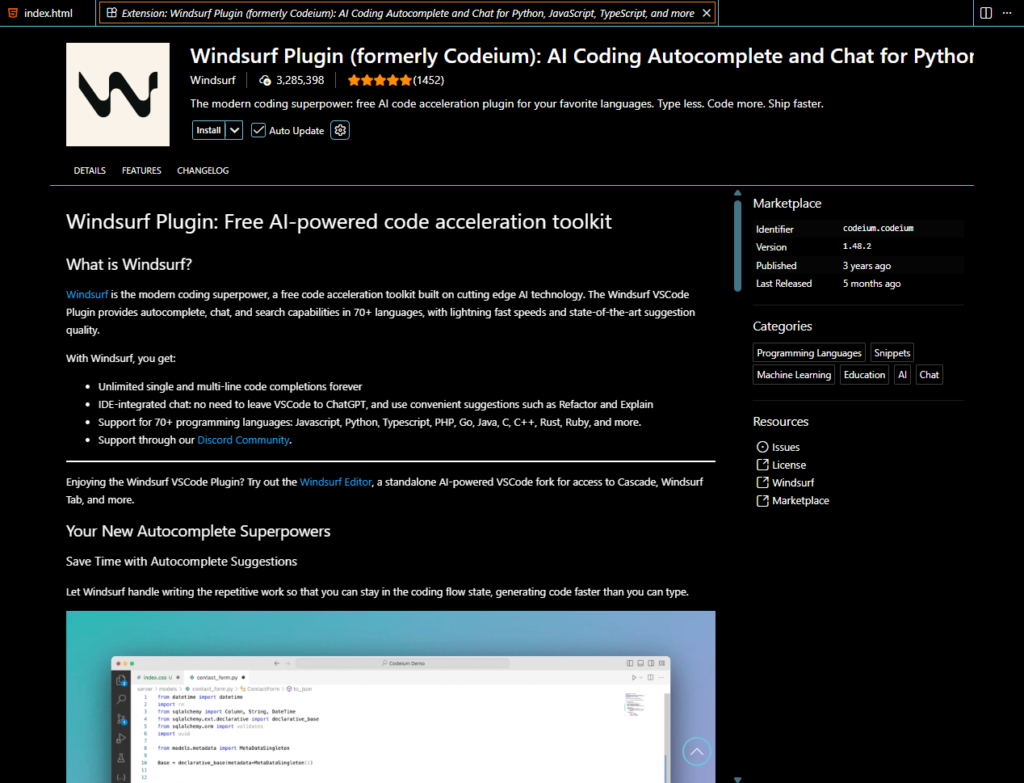
Codeium confuses me. It’s free. Unlimited. No catch that I can find. Either they’re secretly training on everyone’s code (which they say they’re not), or they’re planning to charge eventually, or their business model is something I’m too dumb to understand.
Regardless, it works pretty well for a free tool.
What You Get
Autocomplete that’s competitive with Copilot for most everyday stuff. Not quite as good for complex things, but close enough that you probably won’t notice unless you’re doing something weird.
- A chat feature that’s actually helpful for learning and debugging.
- Support for a ton of languages.
- And again, it’s unlimited and free. Which is nuts.
Where I’ve Used It
Built a React dashboard with it a few weeks ago. Handled components, state, hooks, all fine. The suggestions were usually right or close enough that fixing them was quick.
Used it for some Python data processing scripts. Again, worked well. Not mindblowing, but solid. The chat helped me understand some gnarly TypeScript generics I was reviewing. Asked “explain this type definition” and got a breakdown that actually made sense.
Who Should Use It
Students, definitely. Why pay for Copilot when you’re broke and this does 90% of what Copilot does? Hobbyists working on side projects. Same reason. Anyone who’s just curious about AI coding tools but doesn’t want to commit to paying yet.
I tell people to try Codeium first. If you love it but want something slightly better, upgrade to Copilot. If Codeium does everything you need, save your money.
Installing
- Extensions > search Codeium > install.
- Make a free account. No payment info needed.
- Start using it.
- Easiest setup of any tool I’ve tried.
What I Actually Use Every Day
Since everyone always asks: I run Copilot as my main tool. It’s on all the time. When I’m refactoring something big or making changes across a bunch of files, I switch to Cursor. That’s maybe 2-3 times a week.
CodeWhisperer is installed and kicks in when I’m doing AWS work. Since it doesn’t interfere with Copilot, why not keep it around? This setup costs me $30/month ($10 Copilot + $20 Cursor). Considering I bill clients way more than that per hour, it’s whatever.
How to Actually Choose
Got money and want the safest bet? GitHub Copilot. Everyone uses it, it works well, you’ll be happy.
Want the most powerful option and don’t mind paying extra? Cursor. The multi-file editing alone is worth it if you do a lot of refactoring.
Need to keep your code private? Tabnine. Only real option for that.
Broke or just want to try this stuff? Codeium. It’s free and good enough to see if you even like AI code tools.
Do lots of AWS work? Install CodeWhisperer regardless of what else you use. It’s free and better than alternatives for AWS stuff.
Real Talk About Learning
Here’s something nobody tells you: these tools will make you slightly dumber at memorizing syntax, but way better at actually solving problems. I used to pride myself on remembering every function signature, every API quirk, every language gotcha. Now? I remember the concepts and let the AI remind me of the specific syntax.
Some old-school devs will tell you that’s bad. That you should know everything by heart. Those same people probably complained when we stopped writing assembly and started using high-level languages. Tools change. The job changes. Adapt or get left behind.
But here’s the key: these tools work best when you already know what you’re doing. They help you go faster, not replace understanding.
If you’re learning to code, use these tools, but make sure you understand what they’re suggesting. Don’t just copy-paste blindly. That’s how you end up five years into your career unable to solve problems without AI help.
Just Try Something Already
Look, I’ve been writing for like 5000 words now and you probably still haven’t installed anything. Here’s what you should do: install GitHub Copilot or Codeium (depending on whether you want to pay or not), use it for one week on actual work, then decide if you like it. That’s it. One week. Real projects, not toy examples.
After a week, you’ll know. Either you’ll love having the help, or you’ll find it annoying and distracting. Both reactions are valid. I thought I’d hate these tools. Turned out I was wrong. You might think you’ll love them and discover they’re not for you. That’s fine too.
The only mistake is not trying them at all and then having an opinion anyway. That’s just being stubborn for no reason. Download something. Use it. See what happens.
Worst case? You waste a week and uninstall it. Best case? You find a tool that makes your job easier and lets you focus on the interesting problems instead of remembering whether it’s parseInt() or Number() for the millionth time. Your choice.